Conditional Access in Microsoft Entra ID: From Planning to Real-World Impact
 IT Learn Mode
When I first started working with Entra ID (back when it was still called Azure AD), I figured strong passwords and MFA were enough to keep accounts safe. Turns out, that’s just the starting point. These days, attackers are smarter, and the ways we work, from home, on the road, anywhere, mean we need more than the basics.
In today’s hybrid and remote-first world, deciding who can access what isn’t just about a username and password. You need to factor in risk level, user location, device compliance, and more.
That’s where Conditional Access comes in. It gives you a way to make smarter, context-aware access decisions that can help prevent account takeovers and reduce the risk of data breaches.
In this guide, I’ll cover Conditional Access, how it works, the signals it uses, Microsoft’s recommended best practices, and how to create your first policy. I’ll also walk you through what it was like to access a cloud app before and after enabling the policy, so you can see the difference for yourself.
What is Conditional Access?
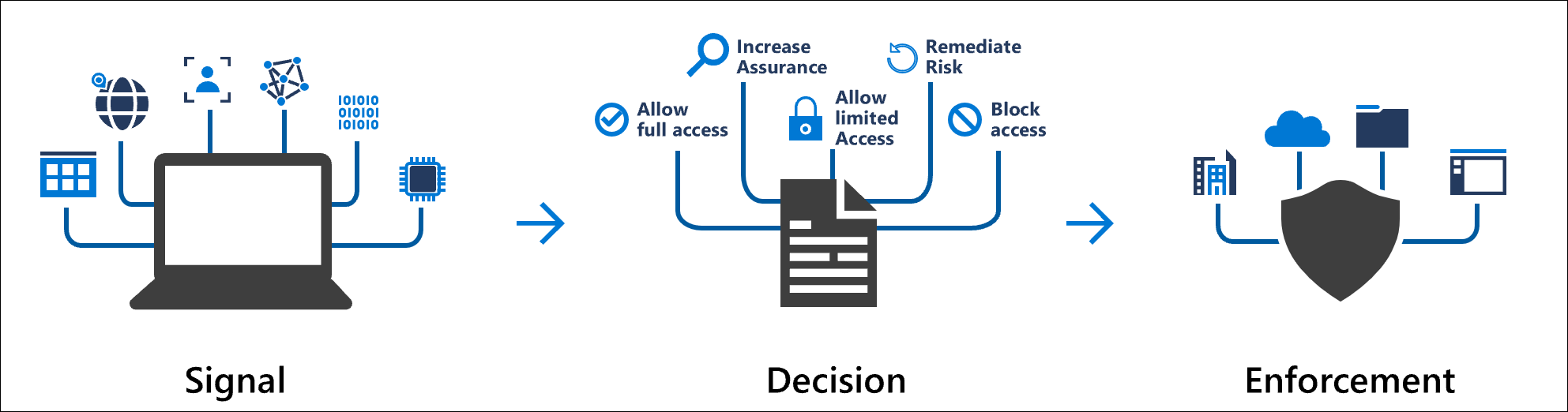
Conditional Access is a policy-based engine in Microsoft Entra ID (formerly Azure AD) that lets you enforce access controls based on contextual signals. Think of it as “if this, then that” for identity:
If a user is signing in from an untrusted location → require MFA
If a user has high sign-in risk → block access
If a device is compliant → allow access without extra prompts
Imagine a finance manager trying to access payroll from an airport café on their personal laptop. With Conditional Access, you can decide exactly what happens in that situation, whether to prompt for MFA, block the sign-in entirely, or allow it if the device meets your compliance requirements.
🔗 Useful resources:
What is Conditional Access? – Overview of the feature and its role in identity protection.
Conditional Access: Conditions – Details on each condition you can use in your policies.
Conditional Access: Network assignment – How network locations are identified and evaluated.
Before we dive into building policies, let’s make sure you actually have the right license to use Conditional Access.
Licensing Requirements
Conditional Access is available with Microsoft Entra ID Premium P1 or P2 licenses and Microsoft Entra Suite, which are included in some Microsoft 365 and Enterprise Mobility + Security (EMS) plans.
P1 gives you the core Conditional Access functionality described in this guide.
P2 adds advanced risk-based Conditional Access and Identity Protection features.
Microsoft Entra Suite combines network access, identity protection, governance, and identity verification solutions.
You can check your current license by going to Entra ID → Billing → Licenses → All products.

🔗 Useful Resource: Microsoft Entra plans and pricing
Common Signals in Conditional Access
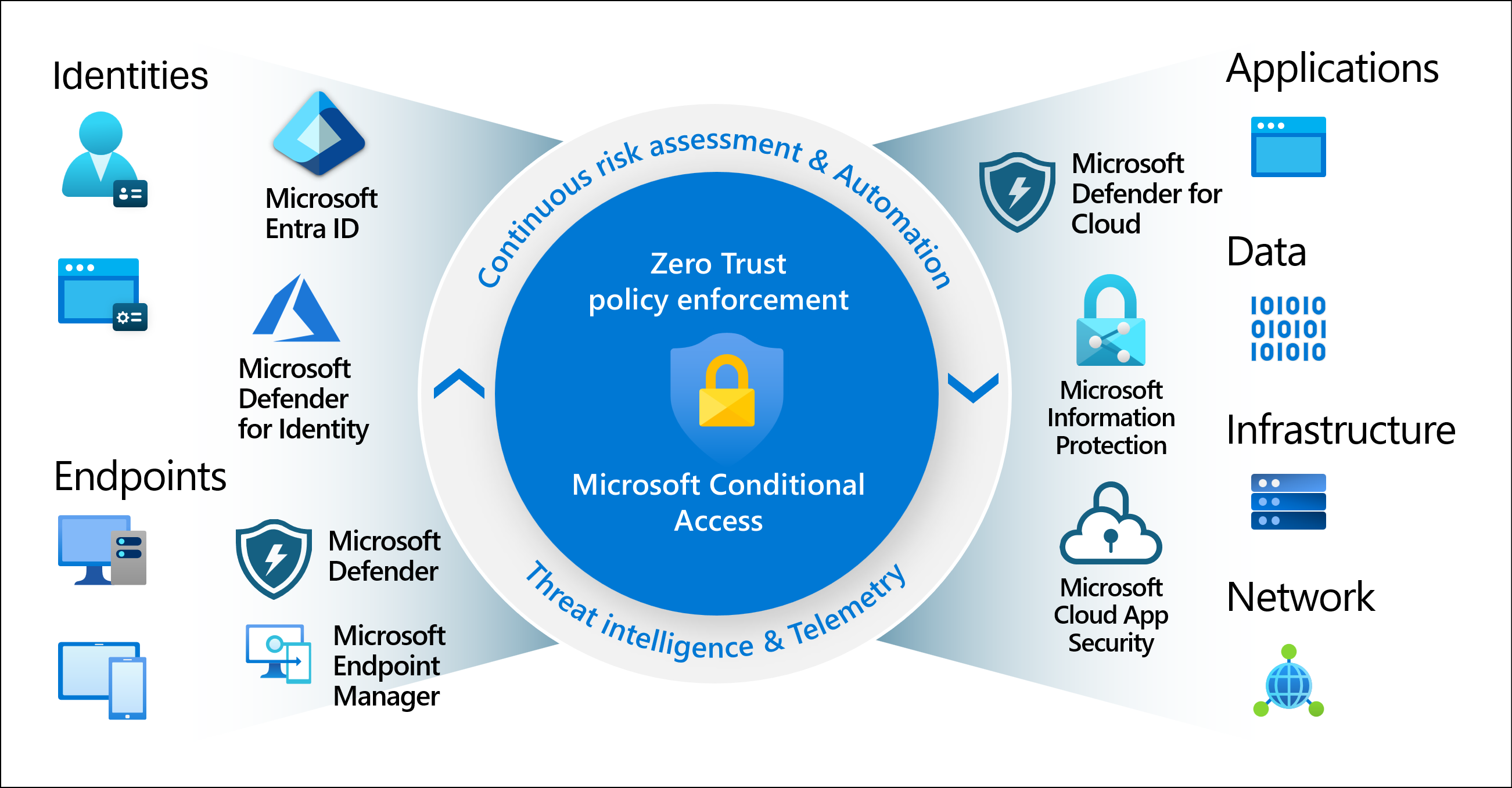
Here are the core signals Conditional Access policies can evaluate:
User or group membership – Target policies to specific people or roles.
Sign-in risk – Risk level calculated at sign-in (low, medium, high).
User risk – Overall likelihood that the user account is compromised.
Device platform – Such as Windows, macOS, iOS, Android.
Device compliance – Whether the device meets your compliance rules via Intune.
Location – IP ranges or geographic regions.
Client app type – Browser, mobile app, or legacy protocols.
Application sensitivity – The criticality of the app being accessed.
Examples of Common Conditional Access Policies
Organizations often implement policies like these:
Require MFA for users with administrative roles – Protects highly privileged accounts from compromise.
Require MFA for Azure management tasks – Adds a layer of security for managing cloud resources.
Block legacy authentication protocols – Reduces exposure to older, less secure methods like IMAP or POP.
Require trusted locations for security info registration – Ensures sensitive changes happen only from known locations.
Block sign-ins from specific locations – Prevents access from countries or regions you don’t operate in.
Block risky sign-in behaviors – Stops potentially compromised logins before they reach your data.
vRequire organization-managed devices for certain apps – Keeps sensitive apps accessible only on secured devices.
🔗 Useful resource: Signals used in Conditional Access
Best Practices for Planning
Before building your policies, plan your rollout carefully:
Start with Report-only mode – See what impact a policy would have without affecting users.
Target roles or groups first – Avoid applying policies to all users immediately; start with a smaller, relevant set.
Exclude break-glass accounts – These are emergency accounts with elevated access, stored securely and used only if primary admin accounts are unavailable. They should bypass Conditional Access to avoid being locked out.
Test policies with pilot groups – Get feedback and iron out issues before full deployment.
Combine with Microsoft Entra Identity Protection – Use risk-based insights to detect compromised accounts and adapt your policies accordingly.
Avoid common pitfalls – Don’t roll out a blanket policy without testing; you risk locking out admins or essential services.
🔗 Useful Resources**:**
Conditional Access & Zero Trust
Conditional Access is a core part of Microsoft’s Zero Trust approach to security. Zero Trust assumes that no user or device is inherently trusted, verification is required every time, regardless of location or network.
By enforcing policies based on user identity, device health, and risk, Conditional Access becomes the policy engine that decides whether to allow, block, or challenge a sign-in. Combined with device compliance, MFA, and continuous monitoring, it helps organizations move from perimeter-based defenses to an identity-driven security model.
🔗 Useful Resources: Zero Trust overview
Microsoft’s Recommended Policies
Microsoft provides ready-made templates for common, high-impact policies. Grouping them makes it easier to plan:
Authentication Hardening
Device Compliance
Risk-based Policies
Other Critical Protections
🔗 Useful Resources**:** Conditional Access policy templates
If you’re starting from scratch, blocking legacy authentication, requiring MFA for all admins, and requiring compliant devices for sensitive apps are strong first steps for most organizations.
The Step-by-Step for Conditional Access
In this scenario, a user signs into Word Online without any Conditional Access policy applied.\
Before implementing the Conditional Access policy
Open a browser and navigate to
https://word.cloud.microsoft.comand select Sign In.
Type the user credentials account and select Next.

Enter user Password and select Sign-In. (No MFA prompt, access is granted)

You are now logged in. The Word web app loads and you can start using the application.

Let’s create the Conditional Access policy
While Report‑only mode is the recommended starting point, for demonstration we’ll enable the policy so you can see the end‑user experience immediately.
Go to the Entra Admin Center
Navigate to https://entra.microsoft.com

Navigate to Conditional Access
Expand Entra ID → Conditional Access

Click + New policy

Name your policy
Suggested name: MFA for Microsoft 365 Access

Assign to users or groups
Under Users, select
Alex Wilber(or a test group if piloting).
Target Microsoft 365 apps
Under Target resources, choose Select Resources
Under Select, search for and select:
Office 365 (Microsoft 365)

Network and Conditions
Leave as
Default💡Network and locations (determined by IP address range or GPS coordinates) the user is signing in fromAccess Controls💡Conditions which define when the policy will apply. For example, 'location’


Access Controls
Under Grant, select Require multi-factor authentication and click Select

Enable Policy & Save
Under Enable policy. Report-only is the recommended practice. However, let’s set it on to see the policy in action.

🔗 Useful Resource: Create a Conditional Access policy
After Implementing the Conditional Access policy
Navigate to
https://word.cloud.microsoft.comand select Sign In.Type the user credentials account and select Next.

Enter user Password and select Sign-In

User is challenged with MFA. Approve the sign‑in using your registered method (authenticator app in my case)

Access granted . The Word web app loads after successful verification.
Troubleshooting Your Conditional Access Policy
Even with careful planning, it’s important to test and validate that your Conditional Access policy works as expected. Microsoft Entra ID gives you two valuable tools for this:
1. The “What If” Tool
Navigate to Entra ID → Conditional Access → What If

Choose the user, application, and sign-in conditions you want to test.

The tool simulates the sign-in and shows which policies would apply and why as well as policies that will not apply.This is perfect for checking your logic before deploying a policy to production.
 💡Classic policies are not evaluated by this tool
2. Sign-In Logs
Go to Entra ID → Monitoring & health → Sign-in logs

Filter by the user or app you want to investigate and select Apply.

Click a log entry to view Conditional Access → Result to see whether a policy applied, was skipped, or failed. The logs will also show the exact reason for the decision, helping you troubleshoot unexpected blocks or skips.

🔗 Useful resource: Use the What If tool to troubleshoot Conditional Access policies
Document Conditional Access Policies
If you’ve ever lost track of your Conditional Access policies or had to explain them to an auditor, you’ll appreciate this one. Merrill Fernando, a Microsoft Principal Product Manager for IAM and all-around identity pro, built a free tool that documents your CA policies in minutes. I’ve been using it to keep my own setup organized, and it’s a game-changer.
The tool connects to your Microsoft Entra environment, reads all your Conditional Access configurations, and produces a clean, human-readable report. This makes it easy to:
Keep an inventory of all policies in one place
Share policy configurations with your team or auditors
Track changes over time for compliance or troubleshooting
It’s especially useful in environments where policies are frequently updated or where multiple admins manage Conditional Access.
In this Bonus section, I’ll walk you through how to use Merrill’s tool to export and document your own Conditional Access policies.
Prerequisites
Entra role: Security Reader or Global Reader is usually enough to read CA policies.
One‑time admin consent may be required the first time you connect.
Use a test tenant first if you’re unsure about permissions.
Open the tool and sign in
Launch the app in your browser.

Sign in with your Entra account.

If prompted, grant (or request) admin consent for read‑only Microsoft Graph scopes used to pull Conditional Access policies.

Choose what to include
Select the tenant (if you have access to more than one).

Check the box if you don’t want to group the export by status.

Choose information to hide (PII & Confidential Information):
Policy Name
Group
User
Application
External Tenant
Terms of Use
Named location

Generate the report
Click Generate documentation.

The tool reads your CA policies through Microsoft Graph and builds a PowerPoint file that generates a summary plus per‑policy sections.

What you’ll see:
A summary table: Policy name, State, Modified date, Created by (if available).
Each policy with assignments, conditions, and controls in plain language.

Final Thoughts
Conditional Access is one of those tools that gets more valuable the more you use it. Learn the basics. Build a small, safe policy. Repeat the process, refining as you go. Before long, you’ll have a security layer that feels invisible to your users but is tough for attackers to get past.
🔁 Learn. Build. Repeat.
Subscribe to my newsletter
Read articles from IT Learn Mode directly inside your inbox. Subscribe to the newsletter, and don't miss out.
Written by
IT Learn Mode
IT Learn Mode
I’m Sandro Figueiredo, a Modern Workplace Consultant who has spent more than ten years helping organizations move to the cloud, streamline how they work, and get the most out of Microsoft technologies. I started this blog because I believe in the power of learning something new, putting it into practice, and then doing it all over again. Learn. Build. Repeat. It is how I grow, how I stay curious, and how I shape my own style. This space is where I share what I discover along the way. From practical guides to lessons learned in the real world, my goal is to make complex things easier to understand so we can all keep learning and building together.